Here Come The Girls
 Tickled By
♥Missy♥
Tickled By
♥Missy♥

This tutorial was written for those
that have a working knowledge of PSP.
Supplies Needed:
PSP 9 (any version will work)
Tube of choice and a close up tube will work best
I used artwork by Ismael Rac
If you would like to use his artwork please visit his store here
I bought this tube when Ismael was at MPT
Tag template #69 by Rachel you can get this from her blog here
Mask 220 by Weescotslass Thanks hun!
Font of choice - I am using 'Grado Gradoo NF'
Texture of choice
Filters used - Penta.com - color dot, Eye Candy 4000 - Gradient Glow and VanDerLee Unplugged x - Interlace here
Supplies here
Lets get started
Open up your supplies and minimize for now all except Rachel's tag template
Image-canvas size-change the width and height to 700 x 700-click ok
Close off the watermark layer-new raster layer-flood fill white
Move this layer to the very bottom this is your background
Select the layer named black shape left-select all-float-defloat
Open up the texture supplied-resize-copy and paste-arrange over the selected shape
Selections-invert-hit delete-do not deselect just yet
Open up your close up tube of choice-resize if needed
Copy and paste over the selected shape-hit delete-selections-select none
Duplicate the tube layer-on the duplicated layer-adjust-blur-gaussian blur-radius 3.00
Change the blend mode to overlay-select the original tube layer-change the blend mode to Luminance (L)
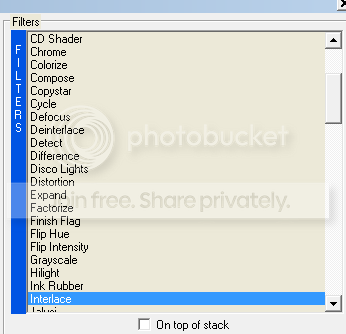
Back on the duplicated tube layer-effects-plugins-VanDerLee-Unplugged X-Interlace
Use the following settings
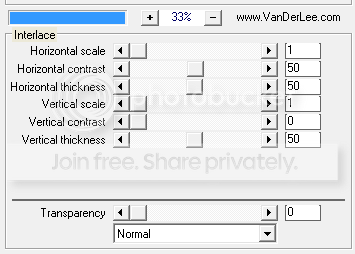
Repeat the above for the right shape
Select the pink shape layer-selections-select all-float-defloat
Copy and paste the texture again-selections-invert-hit-delete
Select the frame left layer-selections-select all-float-defloat-new raster layer
Change your foreground colour to #f66c9c and the background colour to #ffffff
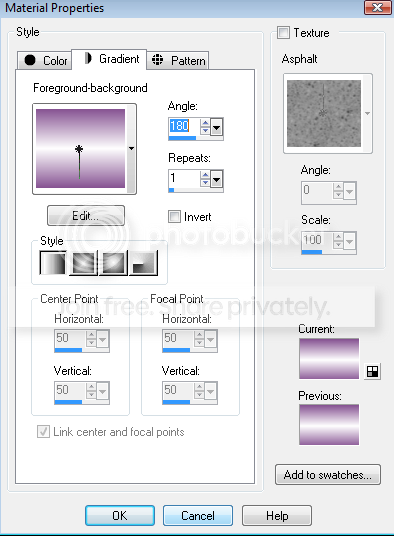
Click on the foreground colour then choose the gradient tab
Using the following settings
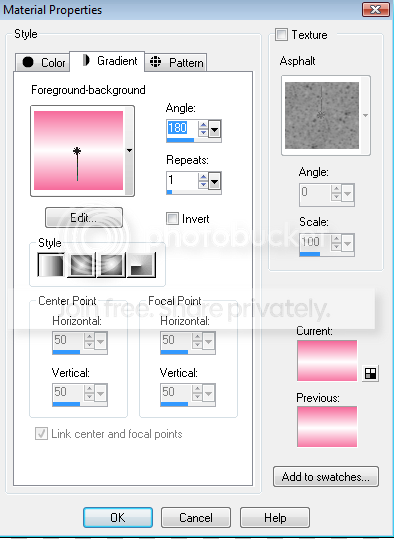
Flood fill the frame with the gradient-do not deselect yet
Effects-plugins-penta.com-color dot-using the following settings
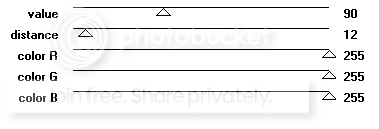
Selections-select none
Effects-plugins-eye candy 4000-gradient glow-using the following settings
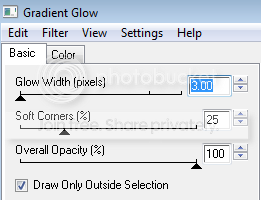
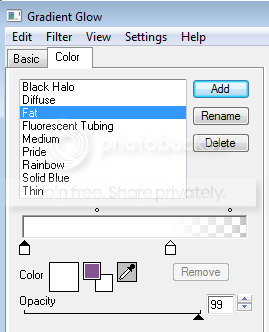
Drop shadow 0, 0, 30, 3.00 black
Repeat for the frame right layer also repeat for the frame1 layer
But before you flood fill this layer with the gradient-change the foreground colour to #885694
Select the pink stars layer-select all-float-defloat-new raster layer
Flood fill alternate ones with #f66e9d and #000000-selections-select none
Adjust-add/remove noise-add noise-using the following settings
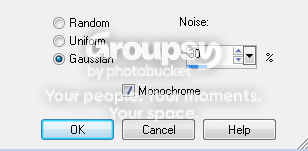
Drop shadow 1, 1, 30, 3.00 black
Select the grey strip layer-selections-select all-float-defloat
New raster layer-flood with fill the same gradient used for frame1 layer
Selections-select none-repeat above gradient glow settings
Drop shadow 0, 0, 30, 3.00 black
Now on the black and white stars layer-selections-select all-float-defloat
New raster layer-flood fill the left star with #f66e9d and flood fill the right star with #875493
Repeat the above noise settings-drop shadow 1, 1, 30, 3.00 black
Select the HCTG layer-selections-select all-float-defloat
New raster layer-flood fill the word 'Come' with #875493
Flood fill the word 'Girls' with #f66d9c-selections-select none
Add the above noise setting to this layer
Add drop shadow to the words 1, 1, 30, 3.00 black
Open up the mask supplied
New blank canvas 600 x 600-change your foreground to #875493-background to #f66d9c
Click on the foreground colour then choose the gradient tab
Using the following settings
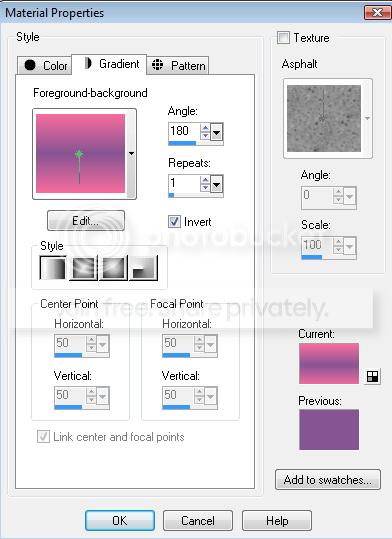
Flood fill the canvas with the gradient
Layers-new mask layer-from image-look for the mask WSL_Mask220-click ok
Merge group then copy and paste over to your tag-arrange this layer above the white background layer
Copy and paste your tube of choice-arrange this in the center of your tag
Drop shadow 0, 0, 30, 3.00 black
Using a font of choice-I am using 'Grado Gradoo NF'
Add your name to your tag-arrange as above-convert to raster-change the blend mode to Overlay
Crop and resize your tag if needed-add proper copyright info then save your tag as .png
Thanks for trying my tutorial. I hope you have enjoyed it.
This tutorial was written on 10th April 2009.
The concept of the tutorial is copyrighted.
Feel free to link to the tutorial and or print out for your personal use.
But please do not copy it in any way to put online, pass out, or rewrite without permission.
The image you create using this tutorial is for you do to as you wish except for monetary gain or for merchandising.
©Just T!ckled P!nk 2007-2011. Any resemblance to another tutorial is purely coincidental.
Proud member of TWI

 Labels:
Here Come The Girls
Labels:
Here Come The Girls
Subscribe to:
Post Comments (Atom)
-♥-My TOU-♥-
All of my tutorials are copyrighted.
Feel free to link to the tutorial in your groups and or print out for your personal use.
But please do not copy it in any way to put online, pass out, or rewrite without permission.
The image you create using this tutorial is for you do to as you wish except for monetary gain or for merchandising. However, just because you did my tutorials that does not give you the right to go and tut your results. Unfortunately that has happened to me. Tut writers please do not use my exact settings in your tutorials please make up your own :)
By staying on my blog and doing my tutorials you are agreeing to my TOU.
©Just T!ckled P!nk 2007-2011. Any resemblance to another tutorial is purely coincidental.

0 comments:
Post a Comment